Earn Dollars with Click'n'Earn NOW ! ! ! ! ! !

Showing posts with label All About Networking. Show all posts

Samsung new bugdet touch mobile

Samsung’s budget touchscreen segment has been increasing steadily and the latest to make the scene is the S3650 which looks like slightly lower ended version Although we don’t know how eco-friendly this handset is, the S3650 is a compact touchscreen handset in the same league as the Samsung Star series.


S3650 handset is quite slim at about 13mm in depth and weighs in at approximately 92 grams. Other features
include -
  • a 2.8-inch touchscreen with a 240 x 320 pixel resolution
  • a 2 megapixel camera
  • Bluetooth v2.1 with A2DP
  • FM radio
  • and microSD card support for external memory
  • Social Networking widgets and apps
I have to say that the color of the handset is a little bit odd with a black front and a yellow rear panel. Seems a bit gaudy to be honest.


Although the handset is yet to be officially announced by the company, it’s been estimated at about V Є 200 EURO

VIRUS REMOVAL TECHNIQUES

Viruses are the major problems of our pcs, just as sickness is to human so is virus to computers.. There are many types of viruses which includes malware, spyware, Trojans e.t.c. A virus is an unwanted program that runs on the computer without the consent of users. A virus attack can lead to malfunction and decreased computer performance. There are different antivirus programs, which prevents the computer from virus attacks.


There are some popular antivirus programs like this:


1.Mcafee
2. AVG
3. Norton
4. Esset
5. Kaspersky
6. Panda
7. Avast

All of the above antivirus programs work on the same principle. Suppose that when a virus attack on your computer a virus scanner, basically, then recognizes the virus definitions after the role of an antivirus program that blocks the virus. Therefore, it is essential to update antivirus software regularly; otherwise an antivirus does not recognize the virus definitions. Many organizations are providing technical support also includes anti-virus support. Vendor technical support in general, offers virus removal with the aid of remote desktop support. A technician can take remote control of the computer user’s permission. A technician can take appropriate steps troubleshooting support to provide antivirus and computer security. aA good antivirus support program that helps the client to the computer free of viruses.

These are the few basic troubleshooting carried out for virus removal in a computer :


1. Delete all temporary Internet files on your computer.
2. Uninstall unwanted programs installed on your computer.
3. Perform the “defrag” and “Disk Cleanup” utility in the specified time.
4. Scan your computer with any updated antivirus program.
5. Install and download the “Anti-malwarebytes.
6. Update Anti-malwarebytes.
7. Scan your computer using the “Anti-malwarebytes’ program.
8. Install and download the “SuperAntiSpyware” program.
9. Scan your computer using the spyware removal program.

WHAT GOOD ANTI VIRUSES DO

1) Scans, Removes Viruses
2) Email

How to Create a Good Password


Password

Passwords That Discourage “Brute Force” Dictionary Cracking:

Examples of Password Strength:
OK Password: Better Password: Excellent Password:
kitty 1Kitty 1Kitty@
susan Susan53 .Susan53.
jellyfish jelly22fish Jelly22fish&
smellycat sm3llycat $Sm3llycat$
warcrafter warcrafter77 %Warcrafter77@
suzukirider suzuk1r1der =Suzuk1r1der=
doctorhouse doctorh0use .DoctorH0use.
adamsandler adams@ndler #adams@ndler=
ilovemypiano ILoveMyPiano (ILoveMyPiano1)
ihateliverandonions 1HateLiver@ndOnions [1HateLiver@ndOnions]
mypuppylikescheese MyPuppyLikesCh33s3 .MyPuppyLikesCh33s3!
julieloveshans JulieLovesHans4ever .JulieLovesHans4ever.
ieatcarrots IeatCarrots00 I34tcarr0ts:

Creating a Strong Password

Before we begin, you must be clear on one big truth: there is no such thing as a perfect password. A committed hacker can crack any password, given enough time and the right “dictionary” or “brute force” tools. But just like breaking into a car, if the protection is strong enough, the hacker will become discouraged and give up before the protection fails.

How Hackers Crack Passwords

Hackers use one of two major techniques: password recovery (an administrator’s technique), and “brute force” repetition. The password recovery tries to fool your computer system into trusting the hacker as a legitimate administrator. Brute force is simply repetitve attempts at your password, up to hundreds of attempts per minute, to crack it.

“Brute Force” Repetition

Hackers often use software tools called “brute force dictionaries”…software that quickly recombines English dictionary words with thousands of varying combinations of spellings. (Yes, much like a Hollywood safecracker movie scene, but slower and less glamorous.) You can see samples of brute force software here.

Brute force dictionaries always start with simple letters “a”, “aa”, “aaa”, and then eventually moves to full words like “dog”, “doggie”, “doggy”. These brute force dictionaries can make up to 50 attempts per minute in some cases. Given several hours or days, these dictionary tools will overcome any password. The secret is to make it take days for your password!

The Password Challenge: “How Can I Make It Tough to Crack, But Easy to Remember?”

Indeed, how does one balance these two contrary objectives? A long password of cryptic characters will be strong, but so frustrating to remember. Yet a short-and-easy password will get cracked within minutes by a good hacker.

Gratefully, there are some helpful tips to create a strong-yet-memorizable password. The idea behind these next five password suggestions is to turn an easy-to-remember phrase into a cryptic word that will discourage hackers.

5 Tips to a Strong Password

1) Make your password long – 6 characters is OK, 10 characters is good, and 15 characters is excellent. 15 is really desirable for high-level security, because 15 is a special number in Microsoft Windows. At 14 characters and less, Windows passwords are scrambled as “hashes” (encrypted into unseen scrambled characters), and stored in hidden Windows system files. It is possible for a gifted hacker to access those stored hashes and unscramble your passwords. However, MS Windows no longer stores hashed passwords at 15 characters and longer. Yes, it is annoying to type 15 characters just to log into your account, but some situations may merit the effort. For example: you are the chief financial officer of a company, or you are the master sergeant for a military unit

2) Start designing the password with a memorable meaningful phrase..then make it complex by adding numbers and special characters. Here is how you do it:

1. Pick a word or multi-word phrase that is meaningful to you.
2. Mix one or two letters to be upper case.
3. Then change one or two letters to be numbers.
4. Then for the sneaky twist: insert one or two non-alphabetic characters. The beginning or end of the password is easiest for memorization purposes. Examples include: .(period), !, *, %, &, or #.

(Yes, a strong password looks somewhat like a censored swear word!)

3) Change your password every 4 weeks. Many employers serious about protecting their data will require their employees to change their password on a regular basis, once a month at minimum. It is a good practice to do the same on your home computer where you keep private financial information.

4) Do not store your password on paper or with storage software Please avoid password-keeper programs that claim to make your life easier. It is the opinion of this writer that password products do not offer enough protection for your login information should your computer get hacked. It is better to memorize a password whenever possible. Never keep your passwords on a piece of paper under the keyboard or in your wallet. Do not keep them in your PDA either; if you must store your passwords at all, keep the passwords’ hints instead. For example, as an alternative to storing “Dexter2Gouda” use “puppy’s name, age and favorite snack”.

5) Use different passwords for your different computer accounts. As annoying as it is to remember them all, please do create a different password for your email, for your online banking, for your eBay and your PayPal. Should one of your passwords ever be compromised, at least the hacker will not be taking over all of your accounts.

A Hacker Inside Your Computer?


Imagine this……

When you check your e-mail program and it reports your username and password as no longer valid. You call your Internet service provider (ISP) to discuss the problem and they tell you they turned off your account due to “abuse”. “Abuse!” you cry to the customer service operator. What are you talking about?”

“Someone used your computer this past Saturday night in an attempt to hack into a government computer system. They made the attempt at 1:20 a.m. from your account,” replies the rep. “Look in your windows registry for a file called QAZWSX.hsq.”

You punch a few keys and sure enough the file stares right back at you. “What is it?” you ask, scared to know the answer.

“Someone used a Trojan Horse virus to remotely control your computer and cloak the identity of the hacker. Here’s how to get rid of it, just….”

What you just read happened very recently to someone I know quite well. A computer hacker found an open port in his computer when he switched over from a dial-up Internet connection to an “always-on” high speed connection.

The hacker used a robot scanning the Internet for available “ports”, openings in a computer that allow data pass back and forth from a network connection like the Internet. Once the hacker found an unprotected port in my friend’s computer he simply inserted a Trojan Horse virus that rides along with Windows Notepad, a handy utility used by just about everyone who makes web pages.

When my friend activated the notepad program he also activated the virus. The virus in turn transmitted all of my friend’s security information to the hacker and allowed him to gain access and control his victim’s computer in the middle of the night.

Count me the last person to sound paranoid, but, as always-on connections through DSL, cable, and T-1 lines proliferate, this story will repeat itself over and over until people learn to protect themselves.

Most people underestimate or are completely about the importance of information they send over the Internet when surfing websites and checking email. Even if you only use a simple dial-up account, you can unknowingly transmit a significant amount of sensitive information.

You can analyze the security of your web connection for free by going to http://www.symantec.com/SecurityCheck. You can also verify the presence of any known viruses of Trojan horse on your computer. The information I saw when analyzing my personal computer frankly shocked me. I saw data I didn’t even know existed staring me right in the face after I performed this analysis.

To protect your computer hardware and sensitive data you should obtain a software package called “firewall”. A firewall, when combined with good anti-virus program, helps stop unauthorized access on your computer, prevents virus infection, and “cloaks” your data ports against a hacker scanning for openings.

Symantec.com and McAfee.com both offer excellent personal firewall and ant-virus software from their websites or you can buy them off the shelf at your local office supply store. A wise investment for anyone on the net before it’s too late!

Protecting Yourself from Unwanted Intrusions

Surfing the net can be very dangerous at times. Many of the social media networks are also dangerous. This does not mean you have to stop browsing the net, it means you need to protect yourself from unwanted internet intrusions. Before I go on, I want to share a little story about some person I helped off the internet. From time to time, I visit Yahoo Answers to help random people remove viruses and such from their computer, used to be a hobby of mine. At the end of my removal guides, I leave an email address so the person I am helping can shoot me an email for further assistance. To make a long story short, the person was hit with a fake antivirus program. Fake antivirus programs try to fool you into thinking you have a ton of viruses so you will buy the virus. The person did just that, he bought the virus. He entered in all his personal information and even entered his credit card information. He was getting charged $59.99 every half an hour. Luckily, his bank called him and got things straightened out. This is just one reason why it is imperative to protect yourself. Here are a few things you can do to help safeguard your computer.

1. Firewall

A firewall is a wall between your computer and the internet. It will block unauthorized access to your computer while surfing the net. It can stop incoming or outgoing traffic with a little bit of tinkering around. Keep in mind that nothing is 100%, but it is part of a layered security system.

2. Antivirus

An antivirus is program that is used to prevent, detect, and remove any malicious software (malware) from your computer. Malware includes viruses, worms, Trojans, ad ware, and spyware.

3. Anti spyware

Antispyware is a program that protects you against spyware. This is very similar to an antivirus but can detect and remove things that the antivirus cannot.

You can have all the protection in the world and you still would not be a 100% safe, nothing is. However, having a layered defense with a firewall, antivirus, and antispyware will definitely give you a fighting chance. Just remember to stay away from bad Web sites and do not click on anything that looks suspicious. If you are on a computer with multiple users, it would be in your best interest to do a full antivirus and antispyware scan every week to be sure you are malware free. It would be a shame to end up in the same pickle as the person from Yahoo Answers.

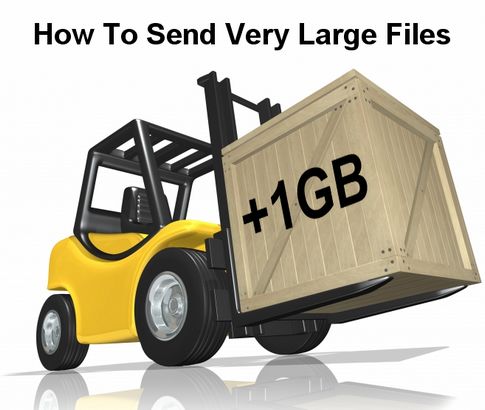
How to Send Large Files


Have you ever tried to send a large file through email? This is something that is hard to do if the file is bigger than 10MB. I use Yahoo Mail and they only allowed users to send 10MB files. This can be a problem for users that need to send large files. I know a Website that allows large files to be sent over the Internet. The Website is SendThisFile (STF). I have used STF numerous times to send large files to family members in another state and to send installers to users that I am helping remove malware. Here is how it works.

First, register for an account on the Website. STF has four different plans. They have a free plan (which I use), starter plan, pro plan, business plan, and an enterprise plan.

  • Free Plan

The free plan allows large files to be sent but STF throttles the bandwidth so it takes some time to transfer the file. I have sent a 50MB file and it took around 20 minutes for the file to be sent.

  • Starter Plan

$4.95 per month or $49.95 per year

500 MB/month transfer

Full speed transfers

6-day file access

$ 3.50 ea. additional 500 MB

  • Pro Plan

$9.95 per month or $99.95 per year

10 GB/month transfer

Customizable FileBox

8-day file access

$ 2.50 ea. additional 1 GB

  • Business Plan

$19.95 per month or $199.95 per year

25 GB/month transfer

Customizable emails

10-day file access

$ 1.25 ea. additional 1 GB

  • Enterprise Plan

$69.95 per month or $699.95 per year

90 GB/month transfer

Brandable / Unlimited Users

14+-day file access

$ 1.00 ea. additional 1 GB

This service can be invaluable to users that send numerous large files over the Internet. Some of the plans seem a little pricey but the starter and pro plan are reasonable. I use the free service and found that it is quite useful. If you do not send large files on a consistent basis then the free plan is the way to go.

Cool Digital Photo Frame - iGala Wi-Fi Linux Touchscreen


Check out this cool digital phone frame, the iGala Wi-Fi Linux Touchscreen Digital Photo Frame. This Wi-FI enabled photo frame features an 8 inch 800 x 600 touchscr4een LCD, and it can pull your photos directly from Flickr and Gmail.

It has 1GB of memory built in, which is enough to store 5,000 photos, and has a built in alarm clock function.


Check out the specifications...

  • Wi-Fi enabled photo frame can pull photos from Gmail and Flicker and has touch screen interface for network configuration
  • 8″ 4:3 800X600 Digital LCD
  • No PC Needed for Setup, No Subscription Fees for Online Use
  • Full Screen Touchscreen Interface
  • No PC Needed for Setup
  • Linux based operating system
  • Wifi 802.11b/g with WEP, WPA and WPA2
  • 1GB Internal Memory Stores over 5,000 images
  • Auto Synchronization with Flickr Photo Sets
  • Access to Flickr Private Photos
  • Email Photos to Frame
  • Windows Live FrameIt Support for Photos, News and Weather
  • Insert SD media card to display photos from the card
  • USB Mass Storage Connectivity
  • MP3 Support to Play Music
  • Auto Power Saving
  • 110V/250V AC Adapter
  • Clock and Alarm Function
The IGala Wi-Fi Linux Touchscreen Digital Photo Frame is available for $239.99 from shops such as Think Geek.

How to Connect 2 or More PC's or Laptop Any where Any time

Ethernet or FireWire

If you want just a temporary arrangement for sharing files between two computers, a direct cable connection can be the fastest method. With this setup, you manually configure the computers' IP addresses, since you have no DHCP (dynamic host configuration protocol) server to create the connection automatically.
This technique uses an ethernet or FireWire (IEEE 1394) cable. The benefit of choosing this method over a Bluetooth or Wi-Fi connection is that it allows fast transfers of big files. But both cables have limitations. FireWire connections work only on
Windows XP, not Vista. (You can use FireWire to network an XP machine and a Mac, however.) And ethernet requires a crossover cable or another piece of hardware, either a hub or a switch. The crossover cable will likely be labeled as such; otherwise, most ethernet uses straight patch cables. (Look for "patch" or "crossover" on the cord.) I like to have a short FireWire or crossover cable on hand, even when I'm traveling; it has saved my bacon on a few occasions.
Once you have connected the cable between the two PCs, here's how to start sharing.
Open the Network Connections Control Panel. Right-click your connection, such as Local Area Connection, and click Properties. Select TCP/IP, and choose Properties. Click Use the following IP address and enter 192.168.0.1 as the IP address and 255.255.255.0 as the subnet mask. Leave the other details blank and click OK. Close the dialog boxes until you return to the Network Connections Control Panel. Repeat the process on the second PC, but set its IP address as 192.168.0.2. You've just created a network of two computers.

Share the Internet Over a Wired Connection

If you have more than one connected port, you'll see a drop-down menu here. Otherwise, just check this box. Internet Connection Sharing (ICS) allows an online PC to pass its connection to an offline computer. You could use this arrangement to share a Wi-Fi signal in a hotel or airport across ethernet, to pass your 3G mobile broadband connection along to a nearby colleague, or to otherwise let another PC mooch a live Internet signal.
The process uses two different network connections: the one that goes to the Internet and the one that leads to the second PC. So you can't pass along a Wi-Fi signal via Wi-Fi; you'll have to use another plug. And if you're directly connecting two PCs via ethernet, you'll still have to use a crossover cable, instead of a standard patch cable.
Connect the host computer to the Internet as you normally do, such as through Wi-Fi, ethernet, or a mobile broadband adapter. You'll rarely set up this kind of temporary sharing at home or your office; but if you do, be sure that your router's IP address is configured to a subnet other than 192.168.0.x. For example, change the 0, setting the router to 192.168.2.1. (The process varies by router brand; consult your documentation.) Windows wants to take over that 192.168.0.x subnet, and will likely report errors if it can't.
In the Network Connections Control Panel, right-click the connection that takes the PC online, and pick Properties. Under the Advanced tab, click the Allow other network users to connect through this computer's Internet connection check box. If necessary, in the drop-down menu, select the method used to bridge to the client computer, such as 1394 for FireWire or Local Area Connection for ethernet. (If you don't have extra ports, you won't need to pick one.) Click OK.
Verify that the client computer is set to automatic configuration. Open the Network Connections System Preference. Right-click the connection that goes to the host PC, such as 1394 for FireWire or Local Area Connection if you're using a crossover ethernet cable between the two machines. Click Internet Protocol (TCP/IP) and choose Properties. Click the Obtain an IP address automatically radio button. That's it--both computers can now get online.

Connect Two PCs on an Ad Hoc Wi-Fi Network

Temporary Wi-Fi connections are slightly different from their wired counterparts because they can reach many computers. You configure the host PC to act as a wireless router, letting other PCs join as they normally would to dedicated hardware. This setup can share files or bridge a wired Internet connection--such as in a hotel room--to wireless friends.
Most Wi-Fi-equipped PCs include a networking utility from the Wi-Fi hardware (or chip) vendor. You can use that tool to configure the ad hoc network; since they vary, however, I'll explain the process within the Windows Control Panel. But first, open your specific utility, and be sure that it's set to allow Windows to configure the hardware.
Open the Network Connections Control Panel. Right-click Local Area Connection, and click Properties. Choose the Advanced tab, and click the first Internet Connection Sharing check box to allow other network users to connect. Click OK.
In the Network Connections Control Panel, right-click Wireless Network Connection and select Properties. Click the Wireless Networks tab, and click Add. Enter a name--I named mine Adhocshare--and check the box at the bottom that says it's a computer-to-computer network. Uncheck the box that says the key is automatically provided. If you want to use a password to access the network, change the settings in the Network Authentication drop-down menu. Click OK.
Double-click the icon for your wireless adapter in the Network Connections Control Panel. Click View Wireless Networks, and then choose the name of the ad hoc network. Click Connect. At that time, on the client computer, open the Network Connections Control panel and double-click the Wireless Network icon. Click View Wireless Networks, highlight the ad hoc network, and click Connect. Enter the password details you've set, if necessary.
You can now share the Internet and transfer files between one or more client computers. Just as with other ICS methods, Windows assumes that you are not using a home router; if your wired connection is on the 192.168.0.x subnet, the process might not work because the host computer configures clients using those addresses.
Want more Wi-Fi tips and tricks? See "
12 Downloads to Make Your Wi-Fi Life Easier and More Fun."

Share Files on Your Temporary Network

You might have to disable the Windows Firewall temporarily. Otherwise, you should see the networked computer listed here. Once you have two PCs talking--with or without a shared Internet connection--they can transfer files. Here's how to activate that service.
Navigate to the folder you want to share, right-click it, and pick Sharing and Security. Choose Share this folder on the network, and then click Apply. (If you don't see that option, first click the second 'Network Sharing and Security' option, acknowledging the security risks and skipping the wizard.)
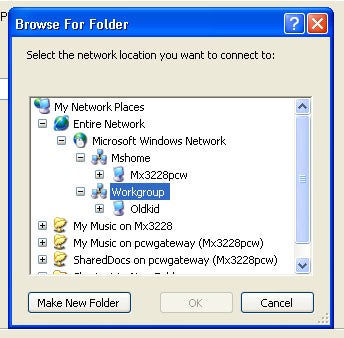
On the client computer, choose Start, My Computer, and click My Network Places. Click Add a network place. Click Next twice, approving the Choose another network location option. Click Browse, and then expand Entire Network, Microsoft Windows Network, and Workgroup, until you see the host computer. Select the shared folder, and click OK and Next until you finish.
The client computer can now copy the shared files off the host. If your group needs to be able to upload, or to edit directly on the host, click the Allow network users to change my files box when you create the shared folder.

Send Files Easily via Bluetooth

Click to send or receive--it doesn't get any simpler. If your PC has Bluetooth, it likely also has Wi-Fi, so you may be asking why you should bother sending files via Bluetooth. In fact, it's amazing how simply and easily this oft-overlooked wireless protocol transfers documents between laptops; you can set it up and fling files in seconds. Its biggest drawback is that it's relatively slow for transferring larger files; recently I had to wait more than 2 minutes to send a 5MB file. But Bluetooth makes sense for many mobile devices, too, especially for getting photos off of cell phones. Here's how to use Bluetooth to transmit files.
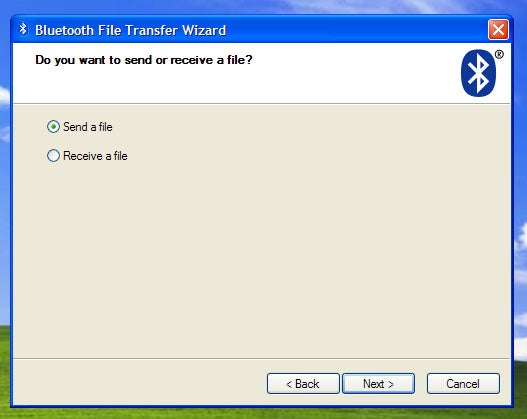
On the Bluetooth-enabled PC where you want to receive a file, open the Bluetooth File Transfer Wizard. (Look in the Accessories, Communications folder.) Click the radio button labeled Receive a file and then click Next.
On the PC from which you'll be sending a file, open the same wizard, choose Send a file, and click Next. (Or jump-start the process by right-clicking a file and picking Send To, Bluetooth device.) Choose Browse, and select the other PC. Usually I skip the passkey process for simplicity. (If you use a passkey, you'll have to enter the same code on each device to authenticate the transfer.) Click Next, and select the file to transfer. Click Next again.
You can send files from cell phones or other devices in the same way; you don't need to go through the detailed pairing process first. Just set the PC to receive a file, and send from the device. The process will vary, but when you're looking at a file, an options menu will often begin the transmission.